
Docker
Installing docker, understanding core concepts, and dockerizing a simple website.
1/30/20262 min read
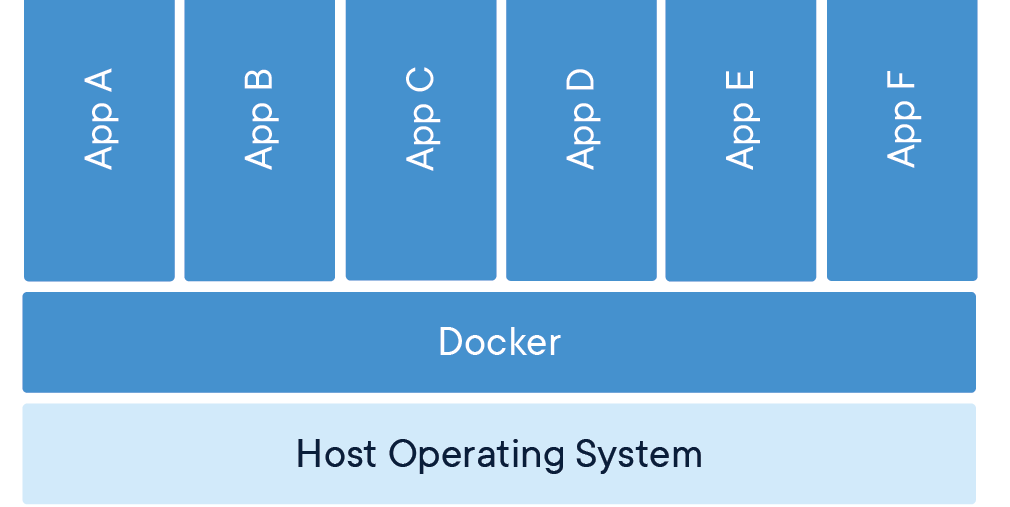
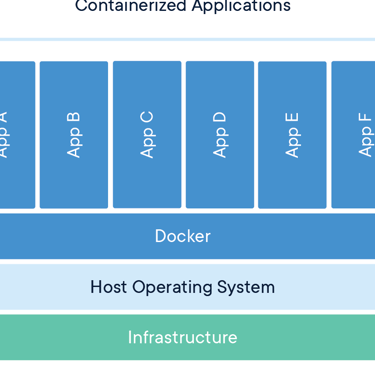
Docker lets you package your app and everything it needs (code, libraries, settings) into one unit called a container. Docker packages an app and everything it needs into one container
Makes apps run the same on every computer, server or virtual machine.
It removes the “it doesn't works on my machine” problem.
Starts fast and uses fewer resources than virtual machines
Works great with CI/CD pipelines
Widely used in modern cloud and DevOps setups
How to install Docker On Windows or macOS
Go to docker.com
Download Docker Desktop
Install it like a normal app
Open Docker Desktop and wait until it says it’s running
How to install Docker On Linux ( Debian )
sudo apt update
sudo apt install docker.io -y
sudo systemctl start docker
sudo systemctl enable docker
docker --version
sudo usermod -aG docker $USER
Docker concepts
Image → A recipe (blueprint)
Container → A running app made from an image
Dockerfile → Instructions to build you own image
Docker Hub → App store for Docker images
Pull/Download an image
docker pull nginx
Run a container
docker run -p 8080:80 nginx
-p 8080:80 maps your computer’s port to the container
Open browser → http://localhost:8080
List running containers
docker ps
Stop the container
docker stop <container_id>
Remove the container
docker rm <container_id>
Dockerizing an application
mkdir app
cd app
touch app.py requirements.txt Dockerfile
echo "flask" > requirements.txt
nano app.py
Paste this in the app.py file
from flask import Flask
app = Flask(__name__)
@app.route("/")
def hello():
return "Hello from Docker!"
app.run(host="0.0.0.0", port=5000)
press ctrl + x to exit
nano Dockerfile
Paste this in the nano editor
# Use official Python image
FROM python:3.11-slim
# Set working directory
WORKDIR /app
# Copy dependency file
COPY requirements.txt .
# Install dependencies
RUN pip install --no-cache-dir -r requirements.txt
# Copy app code
COPY . .
# Expose port
EXPOSE 5000
# Run the app
CMD ["python", "app.py"]
press ctrl + x to exit
Build the Docker image
docker build -t my-python-app .
Run the container
docker run -p 5000:5000 my-python-app
Open in your browser and go to http://localhost:5000
How the Dockerfile works
# Use official Python image
FROM python:3.11-slim
Starts your Docker image using an official Python version (3.11, slim version).Gives you Python pre-installed, so you don’t have to install it yourself. “Slim” means it’s smaller and lighter.
# Set working directory
WORKDIR /app
Sets /app as the folder inside the container where your code will live. All commands after this (copying files, running commands) will happen in this folder.
# Copy dependency file
COPY requirements.txt .
Copies your requirements.txt from your computer to the container.This file tells Docker which Python libraries your app needs.
# Install dependencies
RUN pip install --no-cache-dir -r requirements.txt
Installs all Python libraries listed in requirements.txt inside the container. Your app needs these libraries to run.
# Copy app code
COPY . .
Copies all the code from your project folder into the container. Your Python files need to be inside the container to run.
# Expose port
EXPOSE 5000
Tells Docker that the app will use port 5000. Makes it possible to access your app from outside the container (like in your browser).
# Run the app
CMD ["python", "app.py"]
Tells Docker what command to run when the container starts.This starts your Python app automatically inside the container.